Did you know that the default “copy link” option in O365 personal accounts generates a public shared link with edit permissions? In this edition, we will cover how link sharing in O365 can lead to the accidental internal and public exposure of sensitive data.
Netskope Threat Labs have shared a series of posts highlighting the exposure concerns in Google Calendar, Google Groups, Google link sharing, and Zendesk. The exposure concerns we highlight in this post about Office 365 are similar to those in our Google link sharing post, as both of these apps offer similar sharing settings to the user and security settings to the administrator. This blog post details how accidental data exposure happens in Office 365 and details the steps you can take to limit or disable external sharing.
O365 link sharing
Similar to Google, Microsoft also provides link sharing for a wide range of O365 apps, including OneDrive, Word, Excel, PowerPoint, OneNote, Calendar, and Sway. In each app, users can choose between view or edit permissions, and grant those permissions to “Anyone with the link,” “Specific people,” or “Only people in your organization” (only for users in Business accounts) as shown in Figure 1.
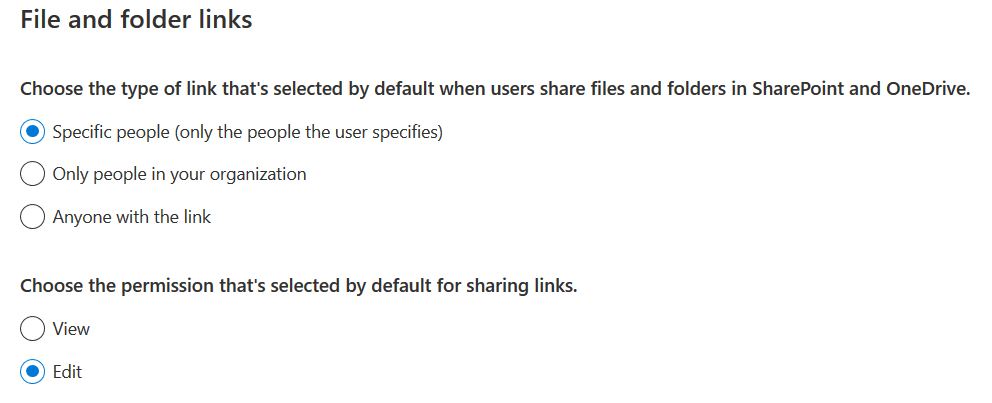
Unlike Google, O365 users are provided with an option to set a password for the link sharing as shown in Figure 2.
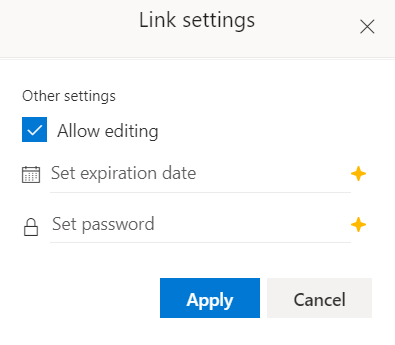
In O365 Business accounts, users are provided with an additional set of link sharing settings as shown in Figure 3.
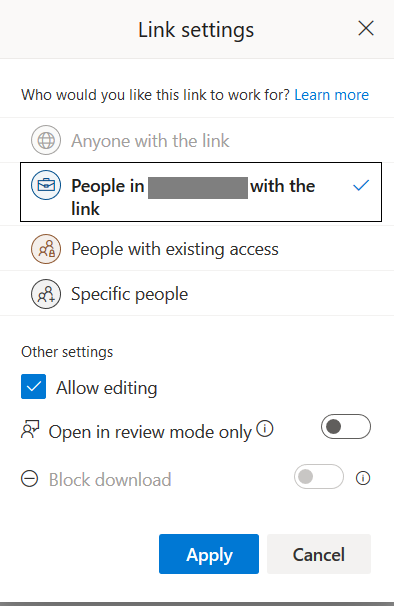
The link sharing settings have the following options:
- Anyone with the link → for sharing a link that allows everyone to access.
- People in [your organization] with the link → for sharing a link that everyone within your organization can access.
- People with existing access → for sharing with users who already have access granted explicitly to them
- Specific people → for sharing with specific authenticated users either inside or outside your organization
Accidental exposure
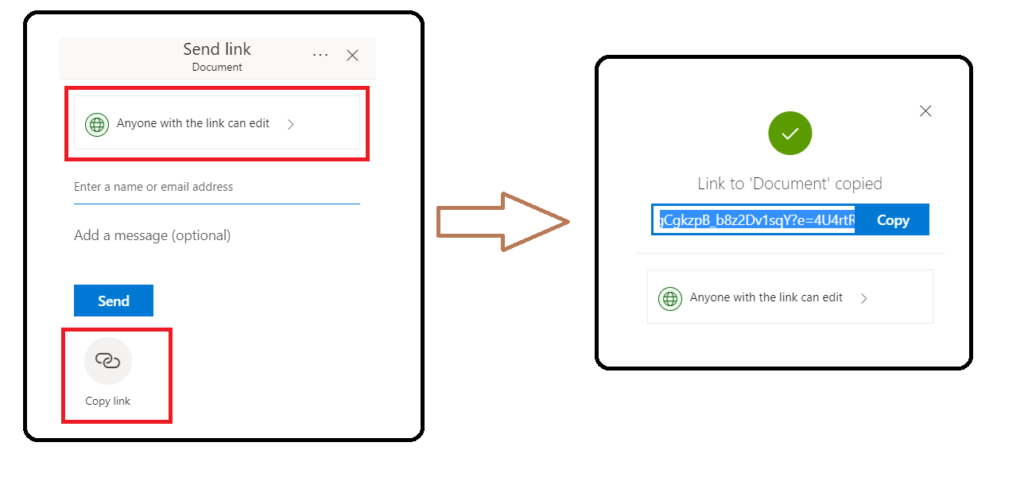
Link sharing can lead to accidental exposure when a user sets inappropriately broad permissions when sharing a document. For example, an O365 personal account user might use the “Copy link” option to share a document with a friend. In this case, it would have been more secure to share the file explicitly with only that friend. If the link gets forwarded to someone else or shared publicly, anyone with the link can edit the document. The workflow that has the default permission allowing anyone with the link to edit, as shown in Figure 4.
In Business accounts, the default settings allow users to share documents publicly, the same way they can in personal accounts. However, administrators can restrict how broadly users can share documents, from the “most permissive” setting to the “least permissive” setting that only allows documents to be shared internally, pictured in Figure 5.
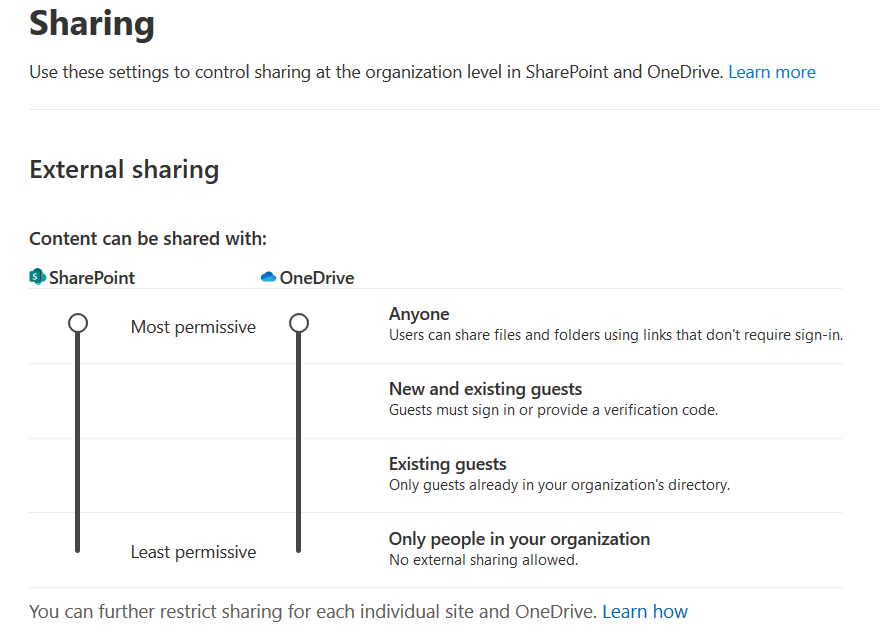
Administrators can also configure an option to allow access to authenticated external users (or guests) using an invitation code to verify their identity that can be redeemed only once.
Even when the “least permissive” setting is chosen, users can still share documents with everyone within the organization via link sharing. This allows everyone in the organization to access and edit the document by default. This can cause an unwanted internal exposure of confidential data. Even within the organization, it is more secure to share documents with individual users to prevent potential insider threats and to only use “edit” permissions when necessary.
Office 365 Usage and Sharing Statistics
In the Netskope Security Cloud platform, OneDrive for Business is one of the most popular apps. On average, 26% of the total users on the platform accessed OneDrive for Business each day over the past six months.
Sharing documents is a common activity among OneDrive for Business users. In total, 23% of Office 365 for Business users shared documents with other individual users within their org, and 3% shared documents with other individual users outside their org. This is the approach we recommend — by specifying individuals, you limit access only to those users. Another 8% used the “Anyone with link” sharing option to share documents either internally or externally. For personal OneDrive accounts, the amount of sharing via link was lower, with only 1% of personal account users sharing files publicly.
The two biggest risks with link sharing are:
- Anyone can access and edit a file if they get their hands on the link, even if you didn’t intend to share the document with them. This is a risk even for sensitive internal data not intended to be shared with everyone in the organization.
- If the link is externally accessible, users can access the links even after they leave the organization.
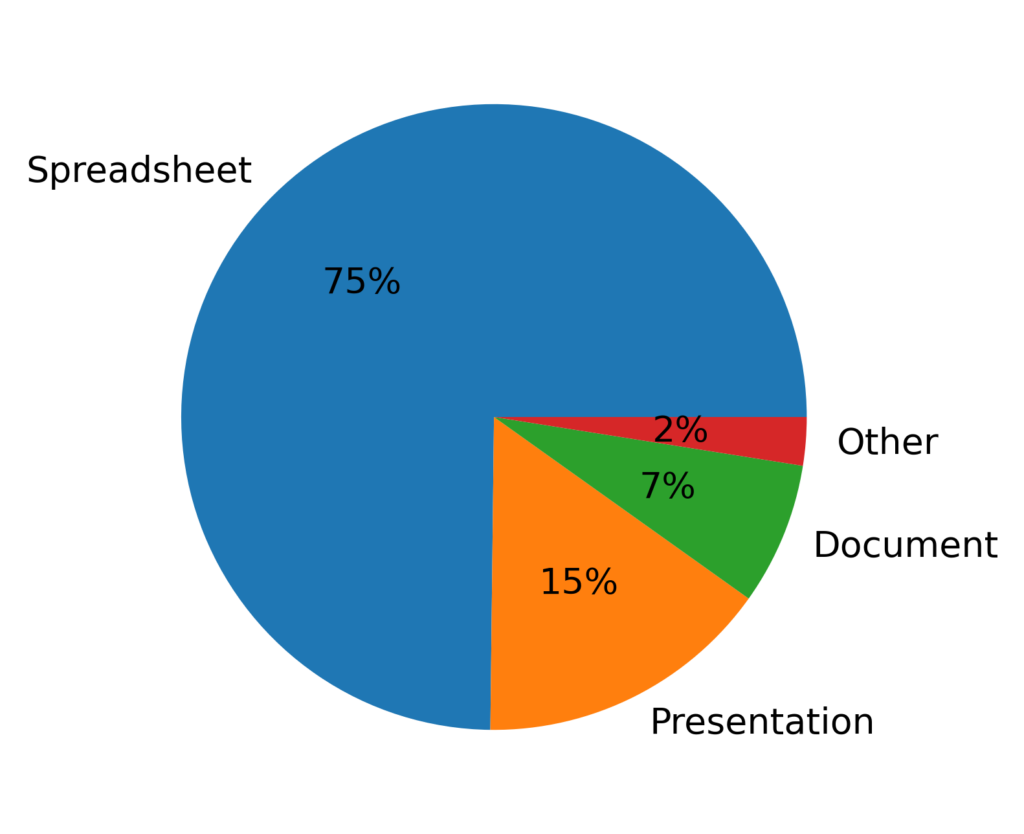
Figure 6 shows a breakdown of the files shared publicly by type. The majority of the documents are Microsoft Office formats, with spreadsheets being the most common. Some other formats, including PDFs and images, are also represented in the “Other” slice. Some spreadsheets, documents, and other files contained confidential data that was likely not intended to be shared publicly.
O365 link sharing – Recommended settings
When you use link sharing, you relinquish control over who can access your files — anyone who gets their hands on a link can access a file, whether you intended them to or not. We recommend to always share files with individual users whenever possible. If sharing files publicly via links, disable editing unless you want everyone to be able to edit the document.
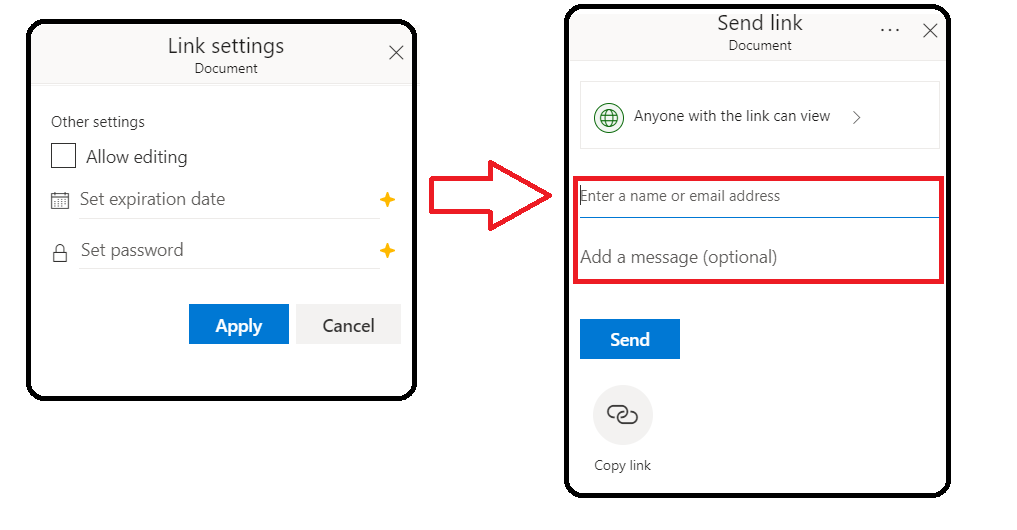
Individual users should disable the “allow editing” option in the link sharing settings and add a name or email address in the Send Link dialog, as shown in Figure 7. Even if you are using a business account, we still recommend sharing documents explicitly with individual users whenever possible, and disabling “allow editing” even if the document is only shared internally.
Enterprise administrators can audit the sharing permissions and limit link sharing with “least permissive” sharing shown in Figure 8.
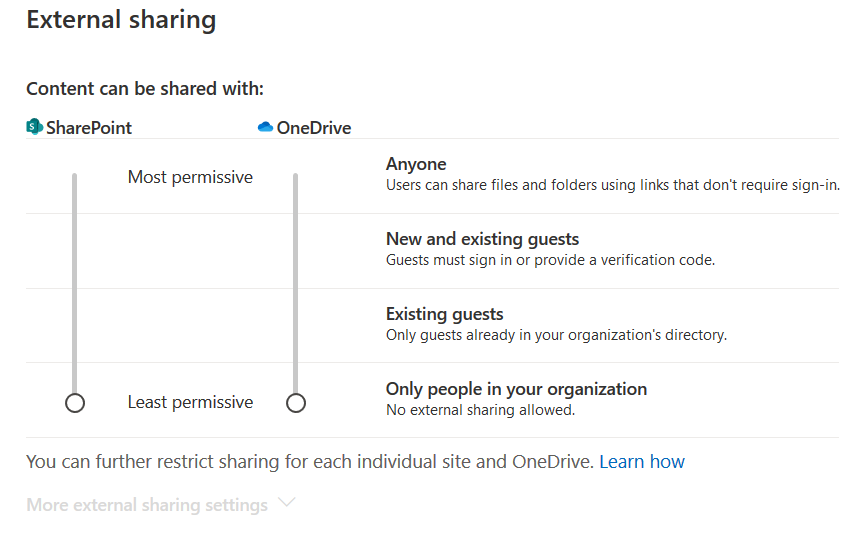
The link sharing settings mentioned in Figure 6 only apply to OneDrive and SharePoint and not other O365 apps. As the external link sharing option exists in other O365 apps like Sway (for example), enterprise administrators should also audit and disable external sharing for these other apps individually from within the Microsoft 365 admin center.
Conclusion
This edition of our leaky cloud apps series provided a detailed synopsis of how confidential information gets leaked through misconfigured O365 link sharing. Misconfigured sharing controls can lead to data exposure. The data can be copied, reused, and also benefit adversaries in gaining access to additional data and infrastructure. We recommend auditing link sharing options and restricting access to specific users to avoid accidental exposure. For more information about sharing permissions, we recommend reading the Microsoft article describing how to audit your own settings.